Since the affected Server has no internet access, its recommended you download the following required files to a network drive that can be used to access them from the Server Machine.
Certficate Root: AddTrustExternalCARoot
Certficate Intermediate #1: UTN-USERFirst-Object
Certficate Intermediate #2: COMODOCodeSigningCA2
1) Download the above Certificates.
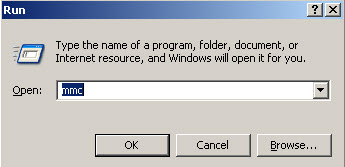
2) From the Server Machine, click 'Start->Run' (may vary on your OS), type 'mmc' into the Open Box, click OK
3) A Management window will appear, click 'File->Add/Remove Snap-in'.
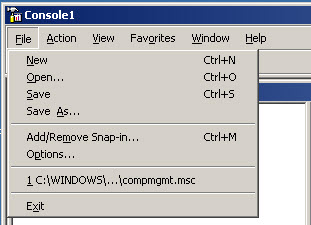
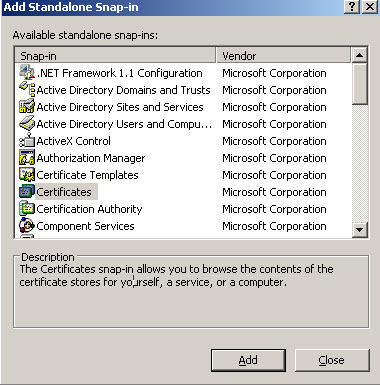
4) The Add/Remove Snap-In window will appear, click 'Add' and select 'Certificates', then click 'Add'.
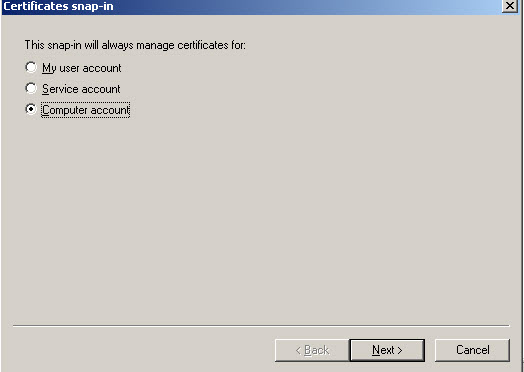
5) Select 'Computer Account' on the Certificates Snap-in screen, and click Next.
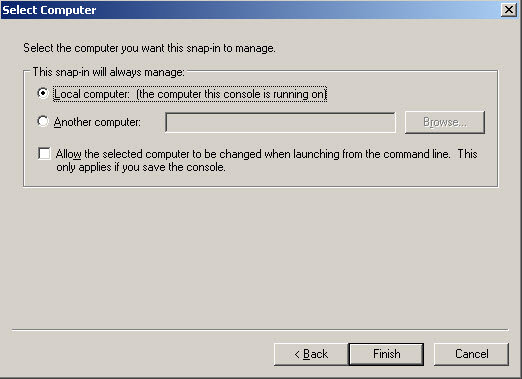
6) Select 'Local computer (the computer this console is running on)'. Click Finish.
7) We're finished with the 'Standalone Snap-in' Window, click 'Close'.
8) You will notice we now have 'Certificates (Local Computer)' in our Add/Remove Snap-In Window, click OK.
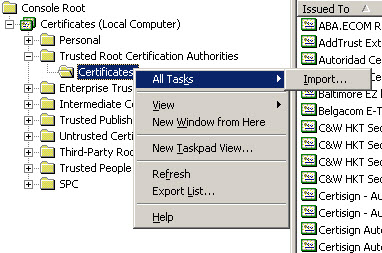
9) Expand Console Root, and Navigate to 'Certificates->Trusted Root Certification Authorities->Certificates.
10) Select Certificates, Right Click, Select 'All Tasks->Import'
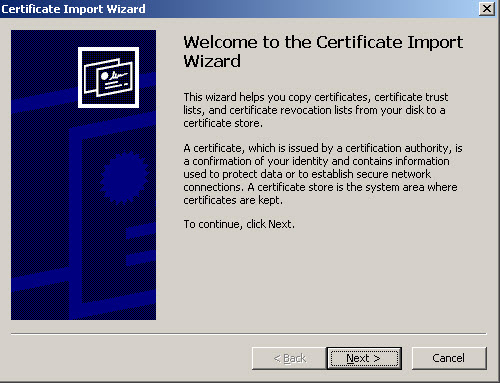
11) The Certificate Import Wizard will appear, click Next.
12) Click Browse and select the AddTrustExternalCARoot.crt from Step #1, then click Next
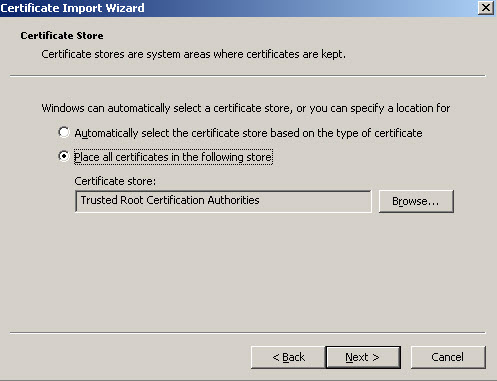
13) Select 'Place all certificates in the following store' - 'Trusted Root Certification Authorities', click Next, then click Finish.
14) Click Finish - Message Should appear: 'The import was successful.'
15) Using the same window as above, Navigate to the 'Intermediate Certification Authorities->Certficiates'.
16) Right click Certficates, and Select 'All Tasks->Import'
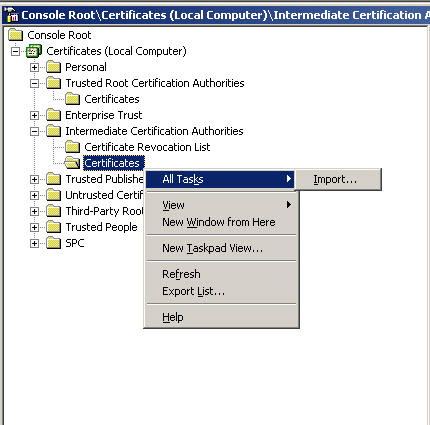
17) The Import Wizard screen will appear, click Next
18) Click Browse, Select UTNAddTrustObject_CA.crt from Step #1
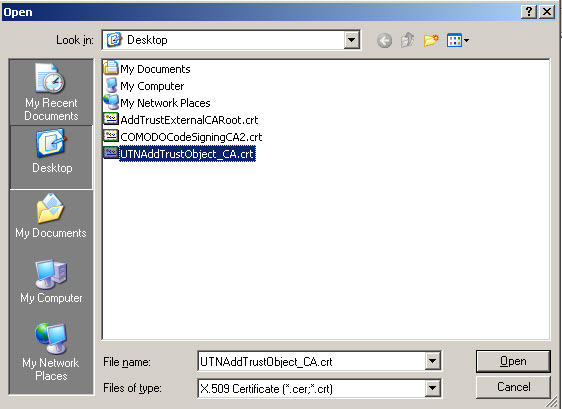
18) Click Next, then select 'Place all certficates into the following store' 'Intermediate Certification Authorities', click Next Again.
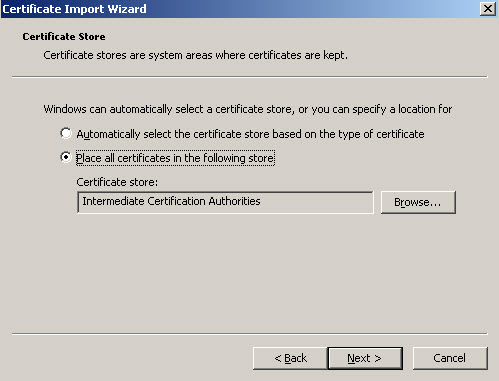
19) Click Finish - Message Should appear: 'The import was successful'.
20) Repeat Steps #15->#19 again, instead using the secondary intermediate certificate: COMODOCodeSigningCA2.crt.
21) Close the Console Window by clicking the [X] in the top-right corner. When prommpted to Save, click >No.