This issue could be related to the OBTAIN Server having little to no internet access, preventing it from downloading Root Certificates (from Windows Update) and/or Certificate Revocation Lists (Comodo - our Certificate Authority).
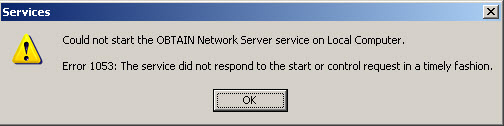
The OBTAIN Network Server fails to start - no messages appear in the Server.log. Trying to start the server manually using Windows Services, displays the message:
This issue could be related to the OBTAIN Server having little to no internet access, preventing it from downloading Root Certificates (from Windows Update) and/or Certificate Revocation Lists (Comodo - our Certificate Authority).
Code Signing is the process of signing executables to confirm the software author and to guarantee that the code has not been altered or corrupted since it was created. The process of signing binaries, requires the author of the product to acquire a certificate from a trusted root authority. The public key is used to authenticate the code and provides a way to trace back the application to the trusted root.
In order for an application that has been 'signed' to verify its authenticity, certificates of the trusted root and immediate root authorities must be installed on the local machine. These certificates are generally installed using Windows Update and occasionally when an application runs for the first time. This is transparent to the user, but in the case of a machine which may have limited or no access to the Internet, secondary steps may be involved. Once the certificates are downloaded, occasionally Windows will attempt to contact the Certification Authority to download the Certificate Revocation List - to ensure the certificate we are using hasn't been revoked. If the Certification Revocation List cannot be download, Windows may decide not to run the application as a security precaution.
1) Ensure Windows has the Root Certificates:
The root-certificate used by Comodo was added to Windows Updates in 2011. Servers which have not downloaded Windows Updates since 2011 will need to manually install the required certificates. See Installing Certificates Manually.
2) Ensure Windows can download the Certificate Revocation List.
The Certificate Revocation List must be downloaded occasionally from the Certification Authority. Some enterprises have policies in place for CRL checks, please check with your Network Security department before proceeding.
Users have two options:
A) Run the OBTAIN Service using a Windows account that has the ability to connect to http://crl.comodoca.com/COMODOCodeSigningCA2.crl.
B) Disable the Certificate Revocation List check within Windows. This is not the recommended option, but may be the only option. See Disable Certificate Revocation List.
Once the certificates have been installed, and CRL has been properly handled, the OBTAIN Server should start without any problems. If you have further questions, or problems, please contact OBTAIN Customer Support.